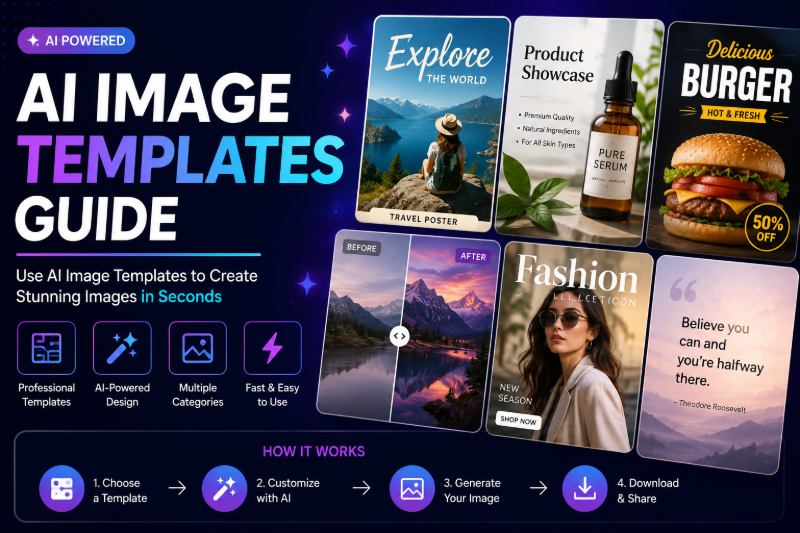
Writing prompts from scratch is powerful — but not everyone wants to start with a blank box. AI image templates on FunMedia give you pre-tuned styles, prompts, and settings so you can generate avatars, art effects, and marketing visuals in one click.
This guide covers how templates work on the Image Generator — browsing, applying, customizing, and combining with uploads. For general text-to-image and image-to-image concepts, see our AI Image Generator Guide.
What Are AI Image Templates on FunMedia?
Templates are curated presets that bundle:
- A pre-written prompt tuned for a specific look (anime, 3D, illustration, etc.)
- Model and style settings optimized for that aesthetic
- A template ID sent with your generation task for consistent results
When you select a template, FunMedia applies its configuration automatically — you can still upload photos (for image-to-image) or edit the prompt before generating.
FunMedia also offers video templates (type 2) on the Video Generator — this guide focuses on image templates; video workflows are covered in our Video Generator Guide.
Templates vs Custom Prompts vs Inspiration
| Option | Best for | Skill level |
|---|---|---|
| Templates | Known styles — anime, 3D, art effects | Beginner-friendly |
| Custom prompt | Unique creative vision, full control | Intermediate |
| Inspiration gallery | Discovering ideas, learning prompt patterns | All levels |
Step-by-Step: Using an Image Template
- Go to FunMedia Image Generator and sign in.
- Open the Template tab (or style grid) and browse available presets.
- Click a template to select it — configuration applies automatically.
- For photo-based styles (avatars, style transfer), upload your image.
- Review the pre-filled prompt — edit keywords if needed (background color, mood, outfit).
- Adjust output dimensions if required (square for avatars, vertical for Stories).
- Submit the task. Download from My Library when complete.
Template Workflows by Use Case
Anime & cartoon avatars
Select an anime or cartoon template → upload selfie → generate. Deep dive: AI Anime Avatar guide and 3D Cartoon Avatar guide.
Art style transfer
Pick a painterly or illustration template → upload landscape or portrait → add style keywords. See Style Transfer guide.
Marketing & social visuals
Choose a bold graphic template → upload product or use text-to-image → export for feed posts. Pair with 50 Image Prompt Examples for custom lines.
Quick experiments
Try 3–5 templates on the same photo to compare styles before committing points to a custom prompt.
Customizing Templates Without Breaking Results
Templates are pre-tuned — small edits work better than full rewrites:
- Safe edits: background color, lighting mood, clothing color, accessory details
- Moderate edits: add "soft smile," "outdoor setting," "golden hour"
- Risky edits: changing subject entirely or mixing conflicting styles — may need a different template instead
Enable Prompt Optimizer when your additions are short; disable it when the template prompt is already long and precise.
Templates + Image-to-Image Upload Tips
- JPEG or PNG — up to 6 images, 15MB each
- Clear subject — templates stylize better with sharp, well-lit photos
- Match template intent — portrait templates for faces, scene templates for landscapes
- One style at a time — don't stack multiple conflicting templates
From Template Image to Video
Templates produce great stills — animate them for more engagement:
- Generate styled image with template on Image Generator
- Download from My Library
- Upload to Video Generator for image-to-video
- Use subtle motion prompt — see Animate Profile Picture or Product Photo to Video
When to Skip Templates
- You need a highly specific scene not covered by presets — use custom text-to-image
- You are batch-generating unique marketing concepts — prompts scale better than templates
- You need exact reproducibility — custom prompt + fixed seed gives more control
Even then, browse templates first — they teach what strong prompts look like for each style.
Points & Failed Tasks
Template generations cost the same points as custom generations. Failed tasks refund points automatically. Browse Pricing if you plan high-volume template testing.
FAQ
Do templates work without uploading a photo?
Yes. Many templates support text-to-image — the preset prompt generates a scene or character from words alone.
Can I edit the template prompt?
Yes. The pre-filled prompt is a starting point — customize before submitting.
Are there video templates too?
Yes. On the Video Generator, browse video templates for pre-tuned motion styles.
Why did my template result look wrong?
Check upload quality, ensure the template matches your subject type (portrait vs scene), and try minimal prompt edits first.
Start with Templates Today
Skip the blank prompt — pick a template, upload a photo or enter a few words, and generate. Open the FunMedia AI Image Generator and explore the Template tab now.