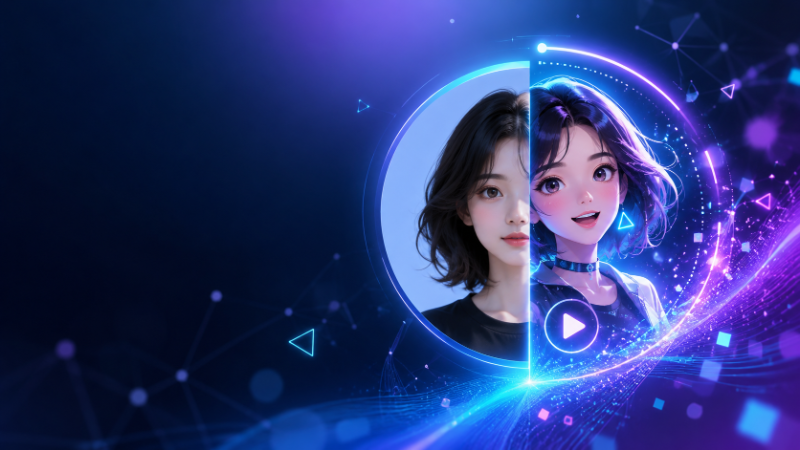
Static profile pictures are fine — but a subtle animated avatar catches the eye in feeds, Discord servers, and link-in-bio pages. With AI profile picture animation, you upload a selfie or styled portrait and the model adds natural motion: blinks, hair movement, gentle smiles, or cinematic camera drift.
On FunMedia, this uses image-to-video — not a separate "avatar animator" app. This guide walks through animating real photos and pre-styled avatars, linking to our Anime Avatar and Style Transfer guides when you want to stylize first.
What Is an AI Animated Profile Picture?
An animated profile picture is a short video clip (typically 6 seconds) derived from a still image. The AI predicts plausible motion — eye blinks, breathing, hair sway — while keeping your likeness or avatar design intact.
This differs from GIF stickers or manual After Effects work: you describe the motion in a prompt, and the model generates the clip in minutes.
For general video generation features, see our AI Video Generator Guide. This article focuses on profile and avatar use cases only.
Two Paths: Animate a Selfie or a Styled Avatar
| Starting point | Steps | Best for |
|---|---|---|
| Real selfie / portrait | Upload directly to Video Generator | Natural motion, professional headshots |
| Anime or cartoon avatar | Style on Image Generator first, then animate | TikTok, gaming profiles, fan accounts |
Path A — Selfie to animated profile
- Use a clear front-facing photo (good lighting, eyes visible).
- Upload to Video Generator.
- Add a subtle motion prompt (examples below).
- Export a 6-second loop for profile use.
Path B — Stylize then animate
- Create an anime or art-style avatar on the Image Generator — follow our AI Anime Avatar guide or Style Transfer guide.
- Download the styled still from My Library.
- Upload it to image-to-video with an avatar-friendly motion prompt.
Best Motion Prompts for Profile Pictures
Keep prompts subtle — profile animations should feel alive, not chaotic.
For real portraits
- "Gentle smile, soft blink, slight head tilt, natural breathing, studio portrait lighting"
- "Slow zoom in, hair moving slightly in breeze, warm golden hour glow"
- "Minimal motion, confident eye contact, cinematic shallow depth of field"
For anime / cartoon avatars
- "Anime character blinking, hair ribbon flutter, soft pastel background, loop-friendly motion"
- "Subtle wave hello, sparkling eyes, kawaii idle animation style"
- "Cyberpunk avatar, neon flicker, slow pan, futuristic profile loop"
Enable Prompt Optimizer for one-line ideas; disable it when you need exact control over subtle motion.
Settings for Profile & Social Loops
- Duration: 6 seconds — loops cleanly on most platforms
- Resolution: 768P for drafts; 1080P for crisp profile banners (6s only)
- Aspect ratio: Square (1:1) for classic avatars; 9:16 if repurposing for Reels/TikTok
Upload requirements: JPG, JPEG, PNG, WebP. Max 20MB. Short side > 300px. Aspect ratio between 2:5 and 5:2.
Where to Use Animated Profile Pictures
- TikTok & Instagram — profile video slots and Reels intros
- Discord & gaming — animated avatar or server banner loops
- LinkedIn & creator bios — stand out with subtle motion (keep it professional)
- Link-in-bio pages — autoplay loop above your content links
- VTuber-adjacent branding — static model art brought to life before full rigging
Common Mistakes to Avoid
- Over-aggressive prompts — "running, jumping, dancing" distort faces on headshots
- Low-quality source photos — blur and heavy filters amplify artifacts in motion
- Wrong aspect ratio — crop before upload to avoid awkward framing after generation
- Skipping the stylize step — for anime looks, always generate the still avatar first
Full Creator Pipeline on FunMedia
- Selfie → optional style transfer or anime avatar
- Styled still → image-to-video with subtle motion prompt
- 6s loop → profile, Reels intro, or ad creative
- Optional: Product sellers can use the same pipeline for brand mascots — see Product Photo to AI Video
Points & My Library
Image and video tasks each cost points. Failed tasks refund automatically. All successful clips save to My Library for re-download. See Pricing for credit packages.
FAQ
Can I animate any profile photo?
Clear, front-facing portraits work best. Group photos, heavy sunglasses, or extreme angles reduce quality.
Will it look creepy or uncanny?
Subtle prompts (blink, breath, slight smile) produce the most natural results. Test at 768P before committing points to 1080P.
Do I need to create an anime avatar first?
Only if you want an anime look. Real selfies can be animated directly on the Video page.
Can I turn the animated avatar into a longer video?
Generate multiple 6–10 second clips with different prompts, then stitch them in any editor — or use text-to-video for full scenes on the Video Generator.
Is commercial use allowed?
Check our Terms of Service before using animated avatars in paid promotions or merchandise.
Bring Your Profile Picture to Life
Upload a selfie or styled avatar, add a gentle motion prompt, and export a loop in minutes. Open the FunMedia AI Video Generator and animate your profile today.