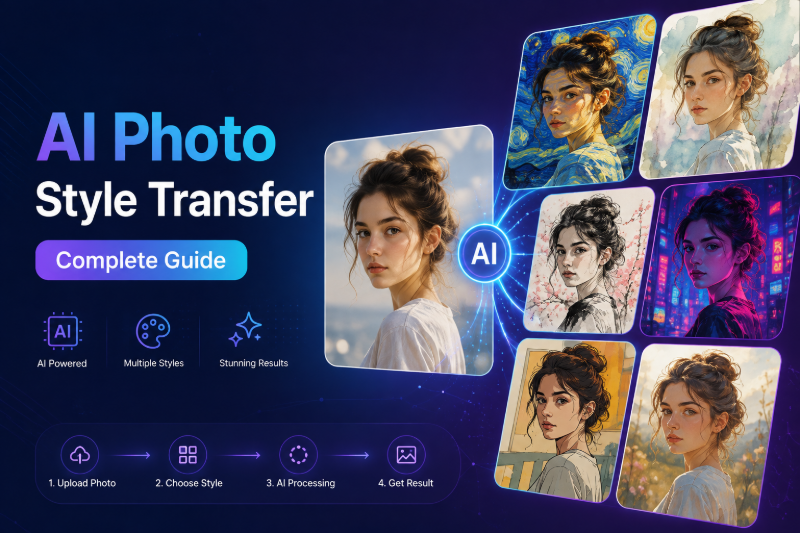
Want your vacation photo to look like a watercolor painting? Or your portrait in neon cyberpunk lighting? AI photo style transfer lets you keep the composition of an existing photo while the model re-renders it in a new artistic look.
Unlike starting from a blank text prompt, style transfer on FunMedia uses image-to-image — you upload a photo, choose a style or template, and the AI transforms textures, colors, and brushwork while preserving faces and layout. This guide focuses specifically on style transfer, not general text-to-image basics.
What Is AI Photo Style Transfer?
Style transfer is a type of image-to-image generation. You provide a source photo; the model outputs a new image that matches your chosen aesthetic — oil painting, anime illustration, 3D cartoon, vintage film, and more.
On FunMedia, style transfer is powered by models such as JiMeng, with curated templates for common looks. You can also write a custom prompt to describe the target style in detail.
New to image generation overall? See our broader AI Image Generator Guide for text-to-image workflows.
Style Transfer vs Text-to-Image: When to Use Which
| Goal | Best approach |
|---|---|
| Keep your face or product shape | Style transfer (image-to-image) |
| Invent a scene from imagination | Text-to-image |
| Anime profile from selfie | Style transfer + anime template — see AI Anime Avatar guide |
| Marketing mockup with no photo | Text-to-image |
This article is for anyone searching "turn photo into art style AI" or "AI style transfer online" — you already have the photo and want a new look.
Popular Art Styles You Can Apply
- Watercolor / gouache — soft edges, paper texture, ideal for travel and lifestyle shots
- Oil painting / impressionist — visible brushstrokes, rich color — great for portraits
- Cyberpunk / neon — high contrast, glowing accents, futuristic mood
- Anime / illustration — clean lines and stylized features for avatars
- 3D cartoon / Pixar-like — rounded forms and studio lighting
- Vintage film / grain — retro color grading for social posts
Browse templates on the Image Generator to preview preset styles, then adjust the prompt for finer control.
How to Transfer Photo to Art Style (Step by Step)
- Open FunMedia Image Generator and sign in.
- Switch to image-to-image mode (upload reference photo).
- Upload your photo — JPEG or PNG, up to 15MB, aspect ratio between 1:3 and 3:1.
- Select a template that matches your target style, or enter a custom prompt.
- Optionally enable Prompt Optimizer to expand short style descriptions.
- Submit the task. Download the result from My Library.
Writing Prompts for Style Transfer
For style transfer, your prompt should describe the target look, not necessarily the subject (the model already sees your photo).
Example style prompts
- "Van Gogh starry night brushstrokes, swirling sky texture, post-impressionist oil painting"
- "Cyberpunk neon city glow, magenta and cyan rim light, rainy reflective streets"
- "Soft watercolor wash, pastel palette, white paper texture, delicate edges"
- "Studio Ghibli background painting style, warm sunlight, hand-painted anime aesthetic"
Combine template presets with one or two custom lines for unique results. Adjust scale if the output drifts too far from your original — higher scale keeps closer to the prompt.
Style Transfer for Portraits vs Products
Portraits & selfies
Face-heavy photos work best with anime, illustration, or painterly templates. For dedicated avatar workflows, read our AI Anime Style Avatar guide.
Product & brand photos
Style transfer can turn a plain product shot into campaign-ready art — then animate it on the Video Generator. See our Product Photo to AI Video guide for the full pipeline.
Upload Requirements & Quality Tips
- Formats: JPEG and PNG (JPEG recommended)
- Size: Up to 6 images per task, 15MB each
- Resolution: Max 4096×4096
- Aspect ratio: Between 1:3 and 3:1
If results look muddy, try a higher-resolution source, simplify the background, or pick a template closer to your goal before tweaking prompts.
Points & Failed Tasks
Each style transfer task costs points based on your settings. Failed generations refund points automatically. Need more credits? Visit Pricing.
FAQ
Is AI style transfer the same as Instagram filters?
Filters apply fixed color curves. AI style transfer re-interprets texture, brushwork, and lighting — often producing more dramatic artistic changes.
Will my face still look like me?
Image-to-image preserves general structure, but heavy styles (anime, 3D) will stylize features. Use lighter painterly prompts for closer likeness.
Can I style transfer then animate the result?
Yes. Export your styled still, then upload it to image-to-video — see Animate Profile Picture with AI.
Do I need Photoshop?
No. The entire workflow runs in your browser on FunMedia.
Start Your Style Transfer
Pick a photo, choose a look, and let AI handle the brushwork. Open the FunMedia Image Generator and transform your next portrait or product shot into art.