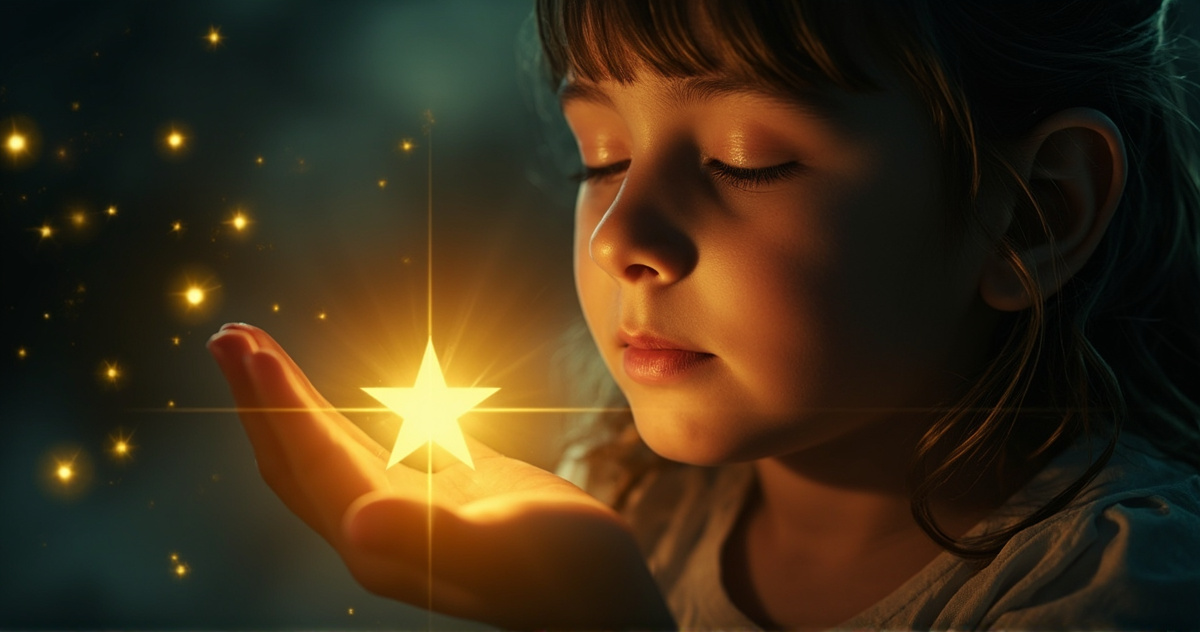
AI image generation has moved from a niche experiment to an everyday creative tool. Whether you want a social media avatar, a product mockup, or a stylized portrait, modern platforms can turn a short text prompt — or an existing photo — into polished artwork in seconds.
On FunMedia AI Image Generator, you can create images in two main ways: text-to-image and image-to-image. This guide walks through both workflows, templates, and practical tips for better results.
What Is an AI Image Generator?
An AI image generator uses machine learning models to produce visual content from your instructions. Instead of drawing pixel by pixel, you provide:
- A text prompt describing subject, style, lighting, and mood
- Optionally, reference images for style transfer or composition guidance
- Output settings such as width, height, and creative controls
FunMedia supports high-quality generation powered by advanced models such as JiMeng, with templates for anime, 3D, illustration, and other artistic looks.
Text-to-Image vs Image-to-Image
Text-to-image: start from words
Text-to-image is ideal when you have an idea but no reference photo. Write a prompt like "a cozy coffee shop at sunset, watercolor style, warm lighting" and the model generates a new image from scratch.
On FunMedia, text-to-image tasks support:
- prompt — your creative description
- width / height — output dimensions
- seed — reuse for similar results with identical settings
- scale — how strongly the model follows your text
- prompt optimizer — expands short prompts for richer detail
Image-to-image: transform existing photos
Image-to-image starts with uploaded photos. The AI preserves composition while applying a new artistic style — perfect for anime avatars, 3D renders, and social profile pictures.
Upload limits: JPEG and PNG (JPEG recommended), up to 6 images, 15MB each, max 4096×4096, aspect ratio between 1:3 and 3:1.
Interested in anime portraits? Read our AI Anime Style Avatar guide.
Templates & Inspiration
Not sure what to write? FunMedia offers curated templates and inspiration presets with pre-tuned prompts and style settings.
- Templates — structured styles for avatars, art effects, and creative looks
- Inspiration — browse ideas and apply prompts directly to the editor
Select a style, upload a photo if needed, hit generate, then tweak the prompt for fine control.
Step-by-Step: Your First AI Image
- Visit the FunMedia Image Generator and sign in.
- Pick a template/inspiration preset, or enter a custom prompt.
- For image-to-image, upload photo(s) within the supported limits.
- Adjust dimensions, prompt optimizer, and style options if needed.
- Submit the task. Failed tasks return points automatically.
- Download results from My Library.
Pro tip: After creating a still image, animate it on our AI Video Generator for image-to-video workflows.
Prompt Writing Tips
Good prompts are specific. Instead of "a cat", try:
A fluffy orange tabby cat sitting on a windowsill, soft morning light, shallow depth of field, cinematic photography, 4K detail
Include when possible:
- Subject — who or what is in the scene
- Style — anime, 3D, watercolor, photorealistic
- Lighting & mood — golden hour, neon, moody studio
- Composition — close-up, wide shot, portrait
- Quality cues — sharp focus, high detail, clean background
Enable the prompt optimizer for short prompts — the system expands them into richer descriptions.
Seeds, Scale & Dimensions
- Seed — influences randomness; same prompt + seed ≈ similar output
- Scale — higher = stricter prompt adherence; lower = more creative freedom
- Width / height — square for avatars, vertical for Stories, horizontal for banners
Points & My Library
Each image task consumes points based on your options. Failed tasks are refunded automatically.
Successful generations are saved in My Library for review and download. Need more credits? See our Pricing page.
Common Use Cases
- Social media avatars — anime, cartoon, or 3D profile pictures
- Marketing visuals — product concepts and ad creatives
- Personal art — illustrations from imagination
- Photo enhancement — artistic filters without manual editing
- Content pipelines — generate stills, then convert to video
FAQ
Do I need an account?
Yes. Signing in is required to submit tasks and access My Library. Points and creations sync across sessions.
What formats can I upload?
JPEG and PNG. Up to 6 images per task, 15MB each, aspect ratio between 1:3 and 3:1.
Can I use images commercially?
Review our Terms of Service before commercial use.
What if generation fails?
Points are returned automatically. Adjust your prompt, check upload requirements, and retry.
Start Creating Today
Whether you begin with a text prompt or a favorite photo, FunMedia makes AI image creation accessible in a few clicks. Open the AI Image Generator and explore what you can create.